
Setting Up the License Server
A license server driver must be installed on the server to manage and control the license.
Installing the Server
Follow these steps to successfully install the license server software:
- Administrator Access
Make sure you are logged in as the computer administrator. If required, contact your system administrator. - Log in to the Server
Log in physically to the server. - Install Sentinel RMS License Manager
Download the latest version of the Sentinel RMS License Manager Installer.
Run the installer and follow the on-screen instructions to complete the installation. - Install Matrix Network License Manager
Download and install the Matrix Network License Manager.
Start the manager application. - Manage Licenses
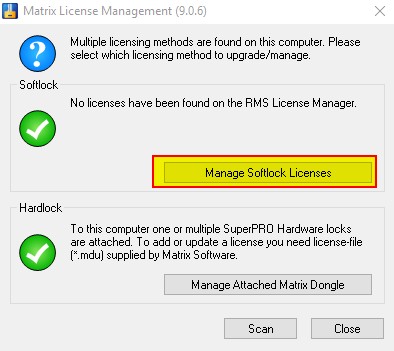
In the manager, choose Manage Softlock Licenses.
- Activate the License
Click Activate.
Copy and paste the activation code you received by email into the white input field.
Click Activate to start the activation process. A message will appear confirming that the activation was successful.
Troubleshooting
If an error occurs during activation, refer to the page “Activation failed?” for further assistance.
Setting Up the Analysis Software
To install MatrixFrame®, go to the installation page. When newly installed, the software is configured to use a standalone software license by default, rather than a standalone hardware license.
Configuring MatrixFrame® for Network Licensing
Set Up MatrixFrame® Software
Begin by installing and setting up the MatrixFrame® software on your computer.Start the Software
Launch MatrixFrame® or MatrixTools®.Open Settings
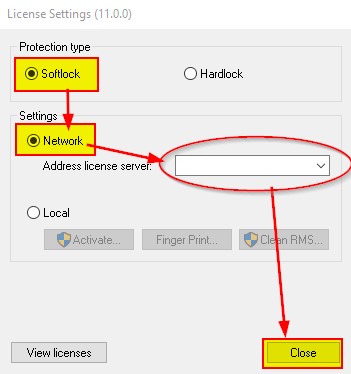
In the startup dialog, select Settings.- Configure License Type
Set Softlock as the license type.
Select Network.
Enter the IP address or DNS name of your license server.
- Finish Configuration
Click Close.
The software is now ready to use with the network license.
Renewing the License
If your current network license has expired or new functionality has been added to the license, you can renew it by following the procedure below.
Renewing the Network License
- Log in to the Server
Log in physically to the license server. - Download the License Manager
Download the Matrix Network License Manager. - Start the License Manager
Launch the Matrix Network License Manager. - Manage Licenses
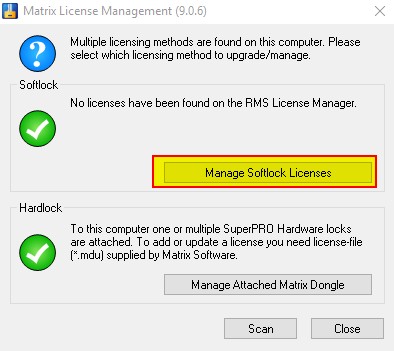
Select Manage Softlock Licenses.
- Activate the New License
Click Activate.
Copy and paste the activation code you received by email into the white input field.
Click Activate to start the activation process. A confirmation message will appear when activation is successful.
Troubleshooting
If an error occurs during activation, refer to the FAQ page for further assistance.