
A standalone hardware license is an alternative to the standalone software license. Its main advantage is that the license is physically stored on a USB dongle. When you receive the USB dongle for the first time, it is already preloaded with a valid license.
First-Time Use
When MatrixFrame® is newly installed, it is configured by default to search for a standalone software license rather than a standalone hardware license.
Configuring the Hardware License
- Administrator Access
Make sure you are logged in as the computer administrator. If required, contact your system administrator. - Insert the USB Dongle
Insert the USB dongle into a free USB port.
Ensure that the indicator light on the back of the dongle turns on. - Start the Software
Launch MatrixFrame® or MatrixTools®. - Open Settings
In the startup dialog, select Settings.
(See Note 1 if the Settings dialog does not appear) - Switch License Type
Change the license type from Softlock to Hardlock, then select Close.
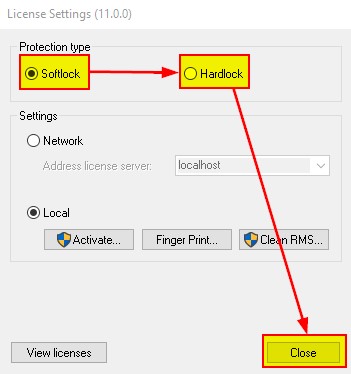
- Confirm License Detection
A message will appear indicating that the USB dongle has been detected with a valid license, and the software is ready to use.
(See Note 2 if the USB dongle is detected but no valid license is found)
Note 1: If the Settings dialog does not appear, the software is already configured correctly and no further action is required.
Note 2: If a message indicates that the USB dongle has been detected but no valid license is found, you must request a new license from Matrix-Software.
Please remain on this page and follow the instructions provided there.
Renewing an Inactive License
Follow this procedure when your current license has expired and you want to apply a new license that you have received by email.
Activation Process
Save the License File
Save the email attachment containing the new license file to a local folder on your computer.Insert the USB Dongle
Insert the USB dongle into a free USB port and make sure the indicator light on the back of the dongle turns on.Start the Software
Launch MatrixFrame® or MatrixTools®.Open License Update Dialog
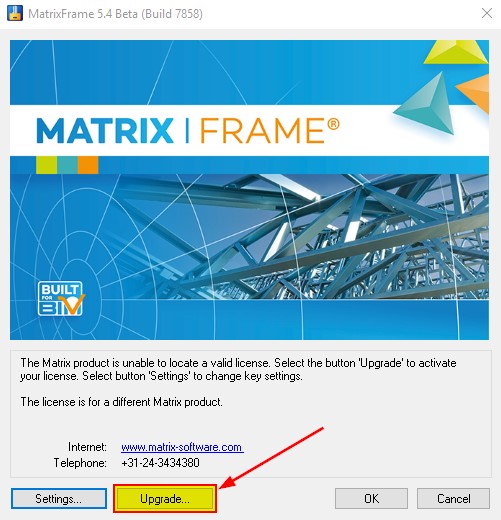
In the startup dialog, select Upgrade.
(See Note 1 if the button is labeled differently)
Read the License
Click Read.Update the Dongle
Update the USB dongle using the license file saved in Step 1.
Note 1: If the Upgrade button is labeled Activate, the MatrixFrame® software is configured to search for a standalone software license.
If the Settings dialog does not appear, the software is already configured correctly and can be used without further changes.
Renewing an Active License
Follow this procedure if you want to replace an existing, still valid license. This may be required, for example, when new functionality has been added to the license.
Update Process
Save the License File
Save the email attachment containing the new license file to a local folder on your computer.Insert the USB Dongle
Insert the USB dongle into a free USB port and ensure that the indicator light on the back of the dongle turns on.Start the Software
Launch MatrixFrame® or MatrixTools®.Close Job Info
When the Job Info dialog appears, select Cancel.Open License Information
In the Ribbon, open the Customize tab and select License Info.

Start the Update
Click Update.Read the License File
Click Read.Update the Dongle
Update the USB dongle using the license file saved in Step 1.