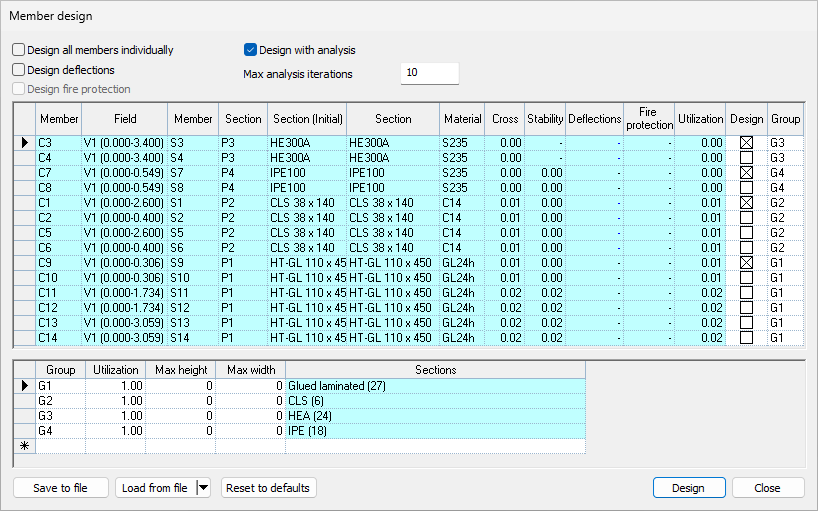
The "Member Design" dialog is a single command that applies to both steel and timber members. This feature provides tools to optimize and design cross-sections for any mix of steel and timber members in a single run, based on user-defined groups and specific design criteria, such as utilization targets, deflections, and fire resistance.
The "Member design" button is located in the "Member design" ribbon panel, after the "Timber panel". The "Steel" and "Timber" panels no longer contain a design button.

Settings
Design all members individually
Turned off: All members assigned to the same group (with design enabled) share a single section with the same ID. The design optimization is based on the maximum Unity Check (UC) value among all members sharing that ID.
Turned on: Before the design process begins, every individual member is assigned a duplicated section. The design optimization runs using only the utilization of that specific member. As a result, after the design process, each member may receive a different section to precisely satisfy its utilization condition.
Note: With "Design all members individually" turned off, steel and timber members assigned to the same group never share a single section: the steel members will receive one optimized steel section, and the timber members will receive one optimized timber section.
Design deflections
- Turned off: The deflection check is left out for every member.
- Turned on: A member is designed for the deflection check only if the check is enabled in the member's own input.
Note: Changing these options never alters the members' own check settings: it never forces a check ON a member if it was not requested in its own settings. If no member in the project has deflection checks enabled, this option is greyed out (a tooltip will advise to enable the check for the members first).
Note: Deflection optimization is not applied to columns. For columns, the deflection cell displays a dash '–' accompanied by an explanatory tooltip.
Design fire protection
- Turned off: The fire check is left out for every member.
- Turned on: A member is designed for fire only if the fire check is enabled in the member's own input.
Note: This option does not automatically switch the check on for all members.
- Example: If out of three defined members only one has the fire check enabled, turning "Design fire protection" ON will only run the fire design for that specific member. The other two will be designed only for their other active checks. If no member has the fire check enabled, this option is greyed out (a tooltip will advise to enable the check for the members first).
- Reason: Running a fire check on every member unconditionally would force the engine to calculate based on non-existent input data (e.g., missing fire resistance, exposure, or protection settings). This could result in over-dimensioned sections or misleading safety reports. The engineer decides which checks a member needs.
Fire design for timber members is available only where the timber code supports it.
Design with analysis
Turned off: Member design is performed without recalculating analysis results after a section changes.
Turned on: The design process includes recalculation of analysis results. The process continues until either the maximum number of iterations is reached or the target utilization values are satisfied.
Note: With "Design with analysis" turned off, utilization values will not be fully accurate in this mode, as changing section properties naturally alters the analysis results.
"Members" grid
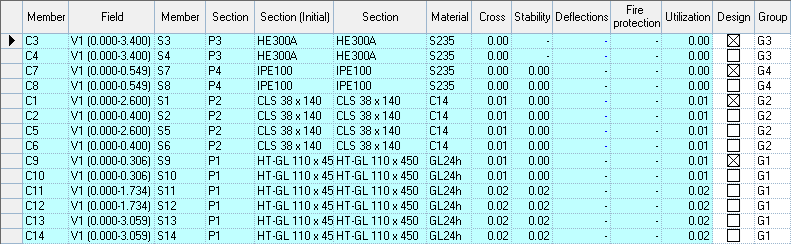
The "Members" grid lists all the structural elements available for design. Steel and timber members are listed together in this grid, allowing you to design any mix of them in a single run.
Material: Displays the material type (Steel or Timber) to easily tell the members apart.
Section (initial): Always displays the original cross-sections that were applied to the members before opening the dialog.
Section: Initially displays the same cross-section as the initial state. After the design process is run, it displays the newly selected/optimized section.
Design: Checked members are included in the design process; unchecked members are skipped.
Group: Displays the assigned design group. The section list options and target utilization values are taken directly from this group. If an invalid group is assigned, the cell displays "N/A" and the member will be ignored during design.
"Groups" grid

An unlimited number of section groups can be created and managed in this grid for member design.
Each group is defined by a Utilization target and a specific section list.
Quick filters are available to limit the allowed sections by height or width.
All sections currently available for a group are displayed in a tooltip.
Clicking the ellipsis button "..." inside the "Sections" cell opens a sub-dialog to manually select specific sections to be used for that group.
A single group can hold both steel and timber sections at the same time. The section picker always offers sections for both materials.
During design, a steel member is optimized using only the group's steel sections, and a timber member is optimized using only its timber sections.
If a group contains no sections matching a member's material, that member will be left unchanged during the design process.
Data management
Saving settings & groups
Automatic save: Closing the "Member design" dialog automatically saves all current settings and section groups. The next time the dialog is opened, the last used values load automatically.
File export/import: The "Save to file" button allows saving the current data manually. This saved data can be restored at any time using the "Load from file" button.
Reset to defaults
Clicking this option performs the following automated procedures:
Deletes all custom groups.
Creates a new group for every unique section ID present in the model.
By default, selects all sections from the same series for that group (e.g., if a member's initial section is IPE300, all available IPE profiles will automatically be selected in its group list).